Creating an AMI using the AWS CLI
A hands-on tutorial

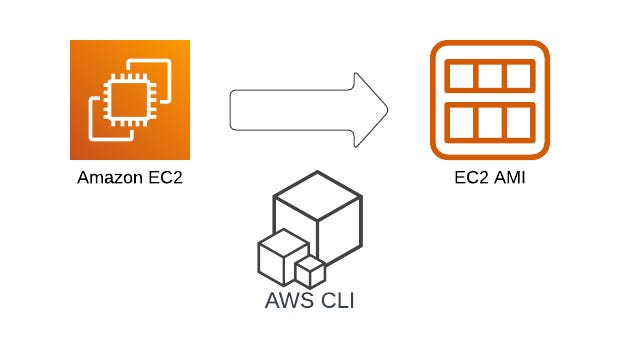
An Amazon Machine Image (AMI) is a maintained image that is customized for how you want to launch your instance. You can pre package your configuration, software and operating system right into the image which improves boot times.
There are Amazon managed AMIs like the Amazon Linux 2 image which is the default image, but you can also create your own and there is even a market place to buy and sell AMIs.
AMIs are locked to a specific region, but can be copied across regions.
Now let’s get hands on. In this article we will
Create an EC2 instance and configure it
Stop the instance and build an AMI
Copy the AMI to another region
Launch a new instance
Prerequisites
Before getting started, you will need the following prerequisites:
Creating an EC2 instance
To get started we need an EC2 instance and to install something on it. Let's use the template we created in the last article.
# cfn.yml
Resources:
  Ec2Instance:
    Type: 'AWS::EC2::Instance'
    Properties:
      ImageId: 'ami-04a2b113b98bfa0e8' # hard coded for now
      SecurityGroups:
        - !Ref InstanceSecurityGroup
      KeyName: myKeyPair
      InstanceType: 't2.micro'
      UserData:
        Fn::Base64: !Sub |
          #!/bin/sh
          kill -9 $(cat /var/run/yum.pid)
          yum update -y
          yum install -y httpd
          systemctl start httpd
          systemctl enable httpd
          echo "<h1>Hello World from $(hostname -f)</h1>" > /var/www/html/index.html
  InstanceSecurityGroup:
    Type: 'AWS::EC2::SecurityGroup'
    Properties:
      GroupDescription: Enable SSH access via port 22
      SecurityGroupIngress:
        - IpProtocol: tcp
          FromPort: 22
          ToPort: 22
          CidrIp: 0.0.0.0/0
        - IpProtocol: tcp
          FromPort: 80
          ToPort: 80
          CidrIp: 0.0.0.0/0
Outputs:
  PublicIp:
    Value: !GetAtt [Ec2Instance, PublicIp]
    Description: 'Servers public IP'
And create the stack as well as the keypair specified in the template (remember to set the correct permissions with the private key).
aws ec2 create-key-pair --key-name myKeyPair
# copy output and chmod 0400 the file

aws cloudformation create-stack \
    --stack-name ami-getting-started \
    --template-body file://cfn.yml
Wait for the stack to finish creating, and copy the instance id from the newly created instance once you’re done.
aws ec2 describe-instancesWe’ll be needing it to create the AMI.
Building the AMI
Like many CLI commands, the create-image command takes a long list of parameters, but thankfully most of them are optional. All we need is the instance id from which to create the AMI. For a full list of parameters see the documentation.
aws ec2 create-image --instance-id <instance id> \
                     --name getting-started-image
Note that running this command forces a reboot of the instance so that a snapshot can be taken of the EBS volume at rest. You can bypass this using the —no-reboot option, but this can lead to inconsistency issues with the resulting AMI, so it is best practice to let it reboot.
Now we can view details about our AMI using the describe-images command to verify that everything looks good. Note that you should add your image id to the query, because otherwise it gathers information of all public AMIs available to you, not just your own private ones.
aws ec2 describe-images --image-ids <image id>Copying the AMI cross region
Now we’re ready to copy our AMI cross region using the copy-image command (see documentation here).
Again we face a long list of available parameters, but only need the source and destination regions as well as the AMI we want to copy. Somewhat confusingly the target region is simply called "region” while the source is called “source-region”.
aws ec2 copy-image --name moved-image \
                   --source-image-id <ami id> \
                   --source-region eu-central-1 \
                   --region eu-west-1
Note that at this stage we also have the option to encrypt an unencrypted AMI, but we can’t unencrypt an encrypted AMI at this stage. If you want to do that, you need to take an EBS snapshot of the original volume instead and decrypt it before using the register-image command. See documentation here.
Launching an instance from the AMI
Now, set up a keypair in the new region like we did at the start, but use the —region flag to specify the region.
aws ec2 create-key-pair --key-name myKeyPairEuWest --region eu-west-1
# copy output and chmod 0400 the file
And let’s set up cloudformation to take the AMI as a parameter. We can even tell it to grab a default value directly from the SSM Parameter Store if we don’t provide one. Let’s first add the value to the Parameter Store.
aws ssm put-parameter --name /getting-started/ami \
                      --value <ami id> \
                      --type String
And now we can use it in the Cloudformation template.
#cfn.yml
Parameters:
  LatestAmiId:
    Description: Region specific image from the Parameter Store
    Type: 'AWS::SSM::Parameter::Value<AWS::EC2::Image::Id>'
    Default: '/getting-started/ami'
...
Resources:
  EC2Instance:
    Type: AWS::EC2::Instance
    Properties:
      ImageId: !Ref LatestAmiId
      KeyName: myKeyPairEuWest
And create our stack in the new region.
aws cloudformation create-stack \
    --stack-name ami-getting-started \
    --template-body file://cfn.yml \
    --region eu-west-1